How to inspect audit events in GITA?
The Audit tab in GITA allows you to view and track all relevant actions performed within the cluster, such as configuration changes, creation or removal of resources, and administrative events. It works as a historical record that facilitates audits, problem investigation, and compliance verification. With this data, it is possible to understand who did what, when, and what the impact was on the environment, ensuring greater transparency and operational security.
-
From the home page, select the organization cluster in which you want to check the audit events:
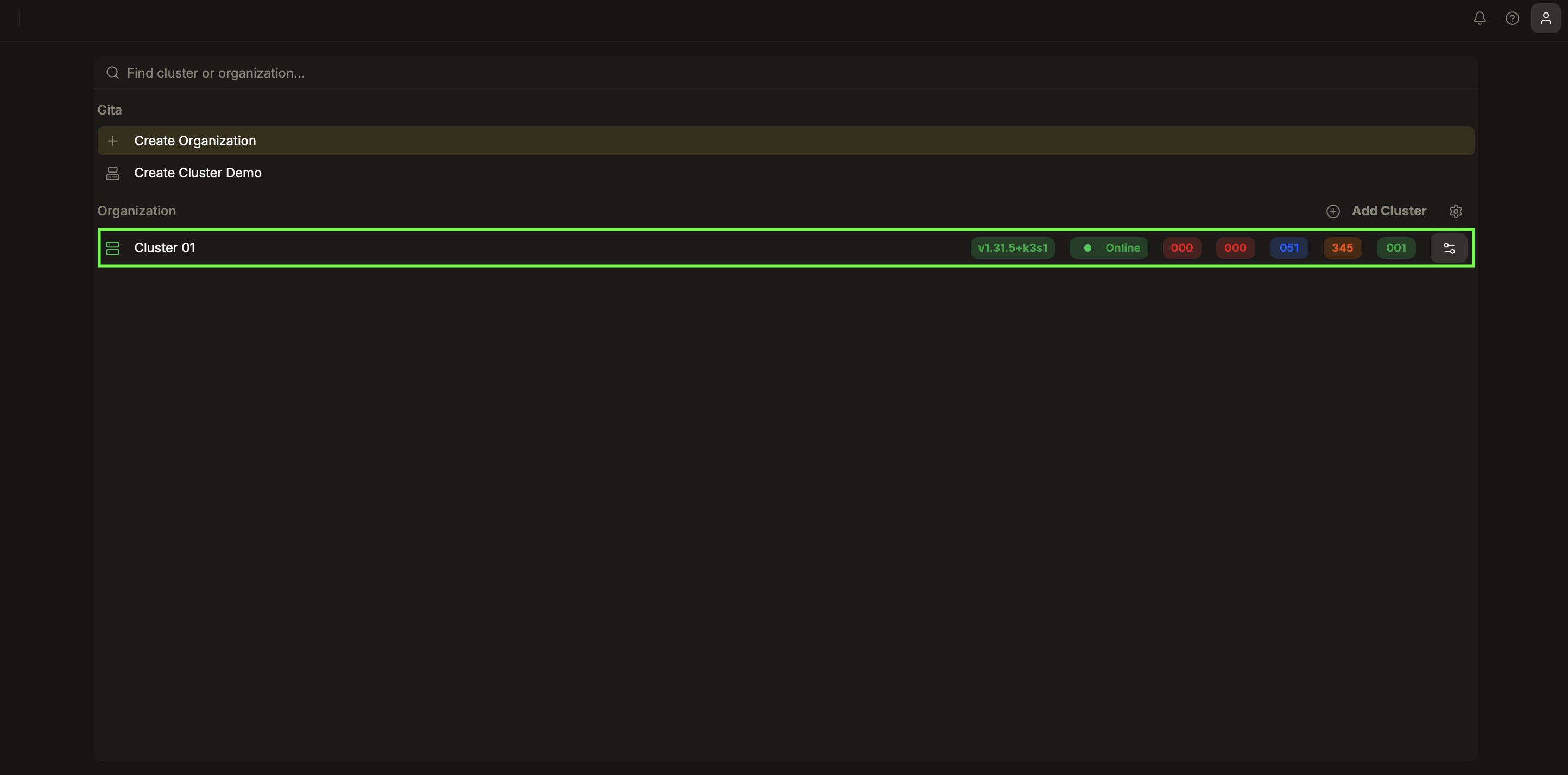
Image 01: Main panel – Cluster selection
-
In the left side menu, access the Audit tab:
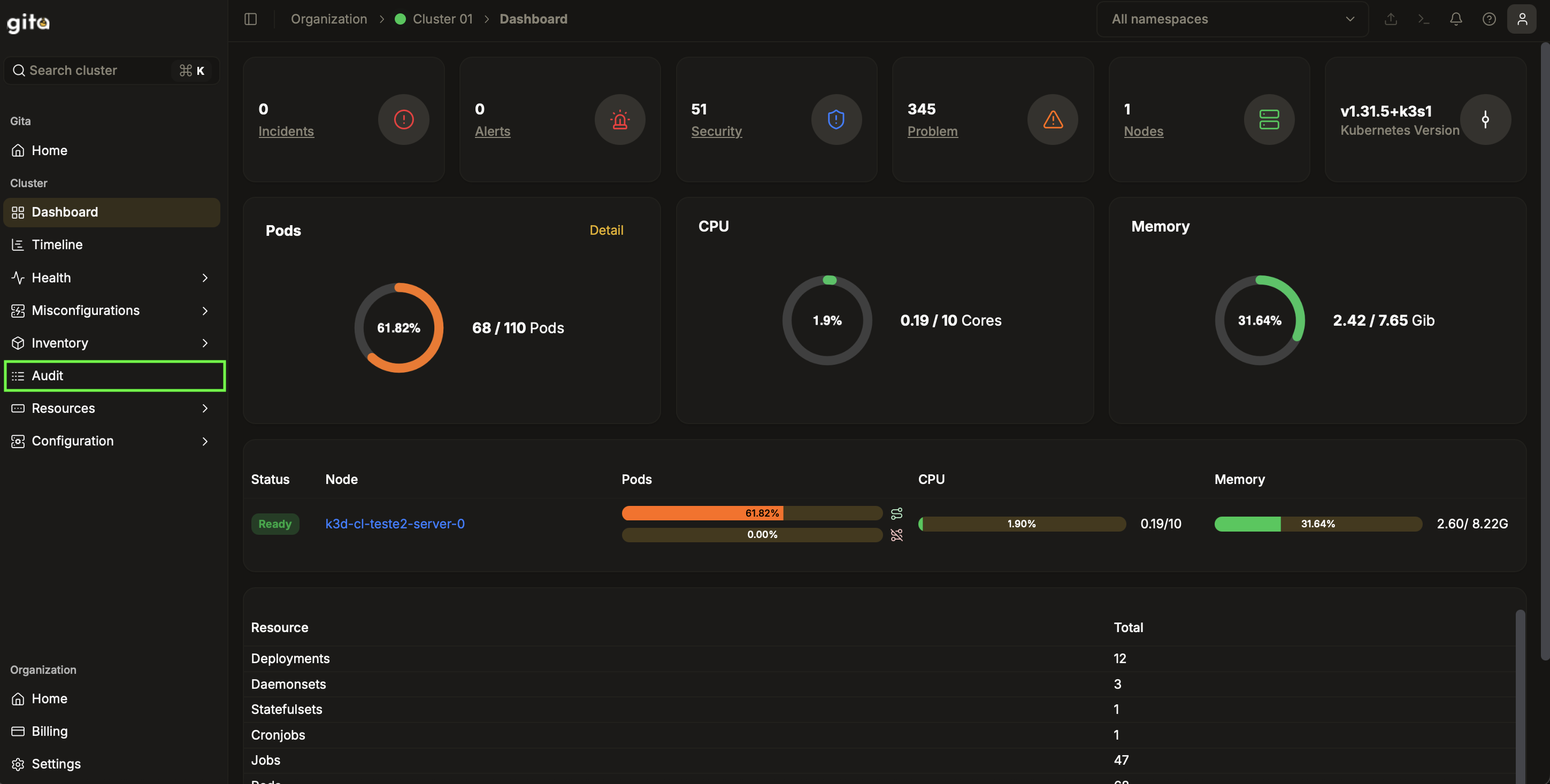
Image 02: Side menu – Access to Audit
-
When accessing the Audit module, it will be possible to see the main display area of the cluster audit events.
At the top of the screen, the following filters are available:- Namespace
- Kind (resource type, such as Pod, Deployment, Job, etc.)
- Verb (executed action: CONNECT, CREATE, DELETE, or UPDATE)
- User (user or responsible service account)
- Date range
- Search (free text search)
- Refresh button (updates the search results)
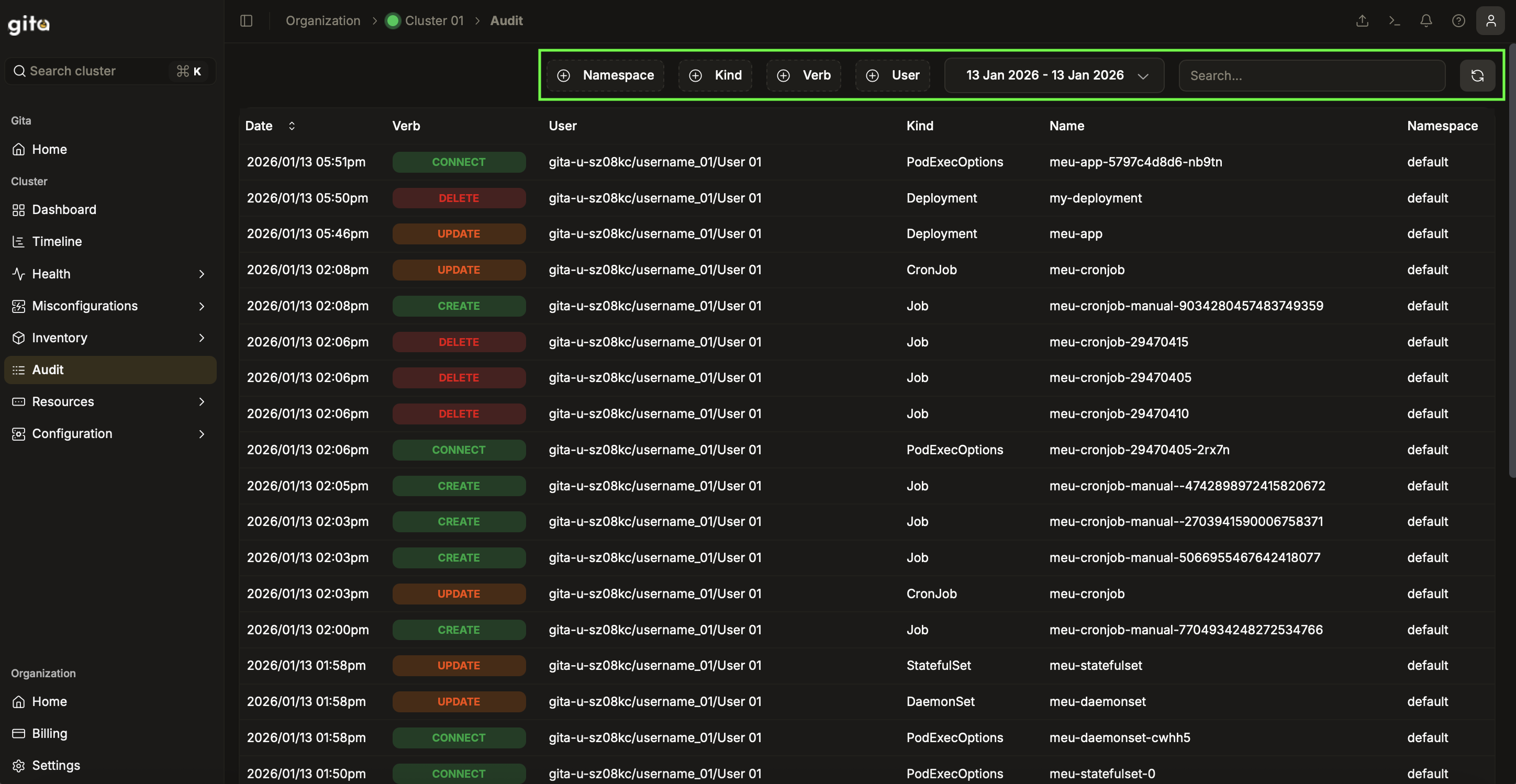
Image 03: Filters in the Audit module
Use search, adjustment, and combination of filters to locate specific events.
-
When there are events recorded in the cluster, they will appear as a list in the central area of the screen.
Each event item includes:- Date and time of the action
- Action type (Verb)
- User or service account
- Affected resource
- Name
- Namespace
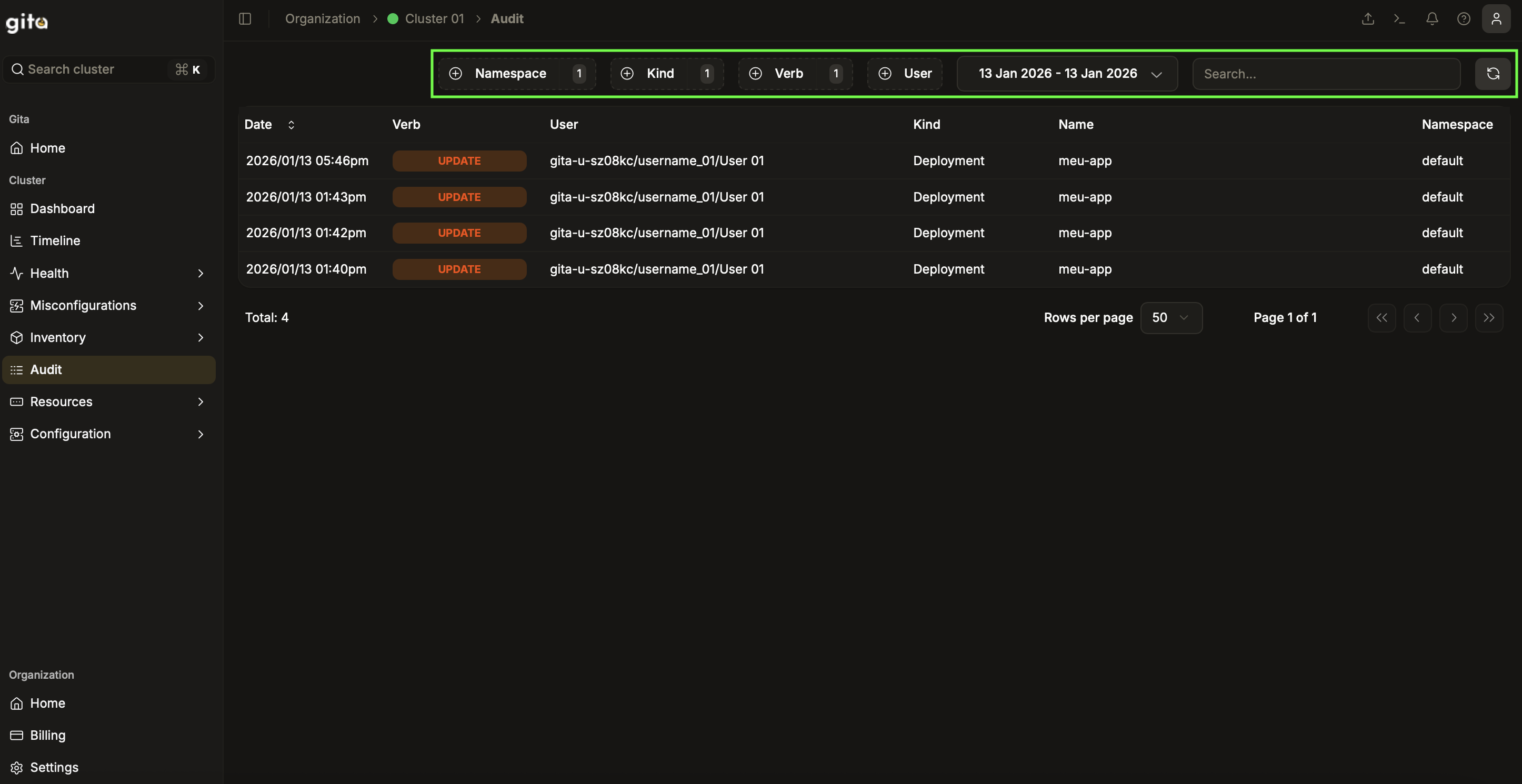
Image 04: Event visualization with applied filters
-
If no data is available according to the applied filters, Audit will display the message:
“There is no content to show”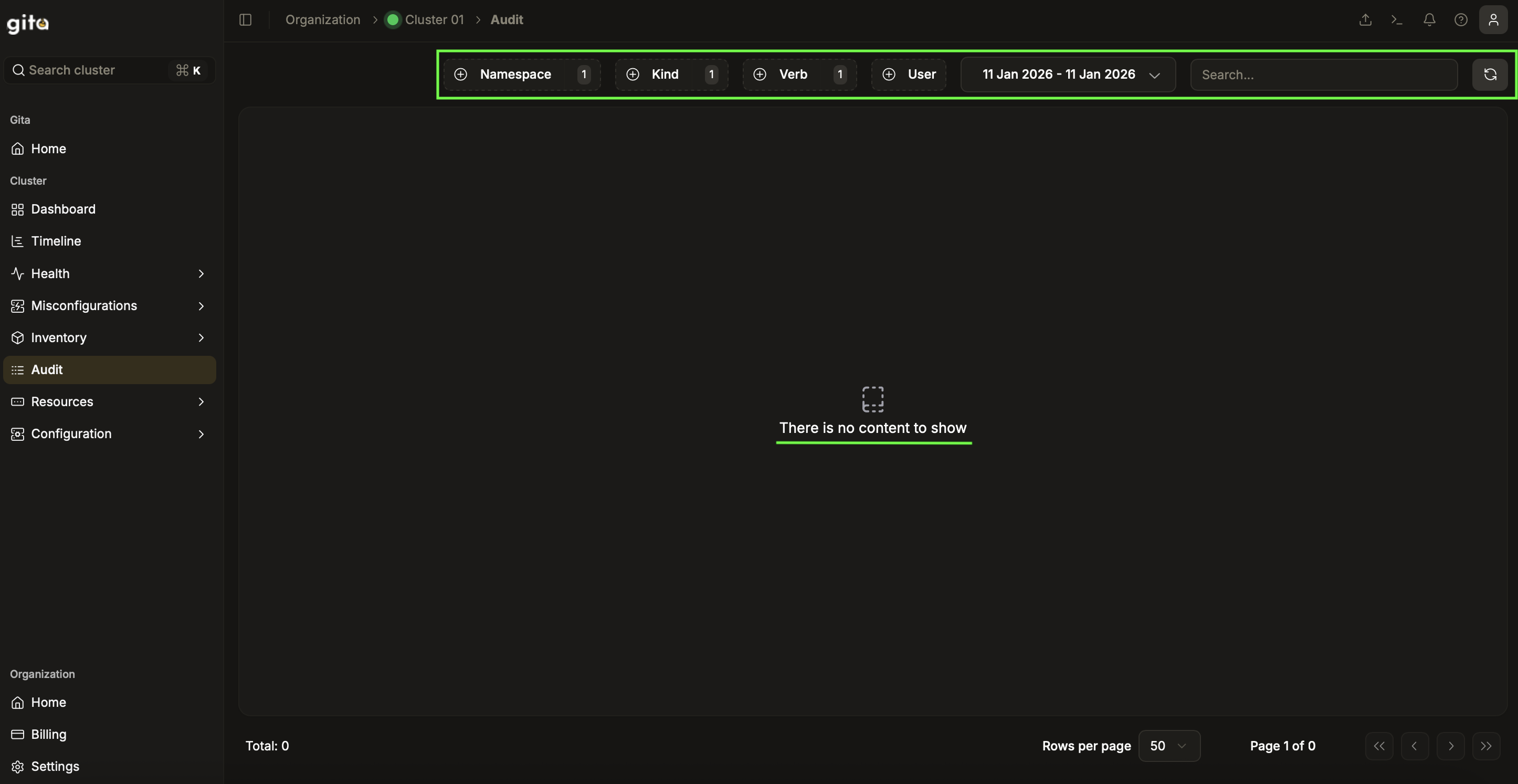
Image 05: Empty event list
-
At the bottom of the screen, it is possible to view:
- Total number of returned records
- Control of number of rows per page (Rows per page)
- Navigation between pages to view more events
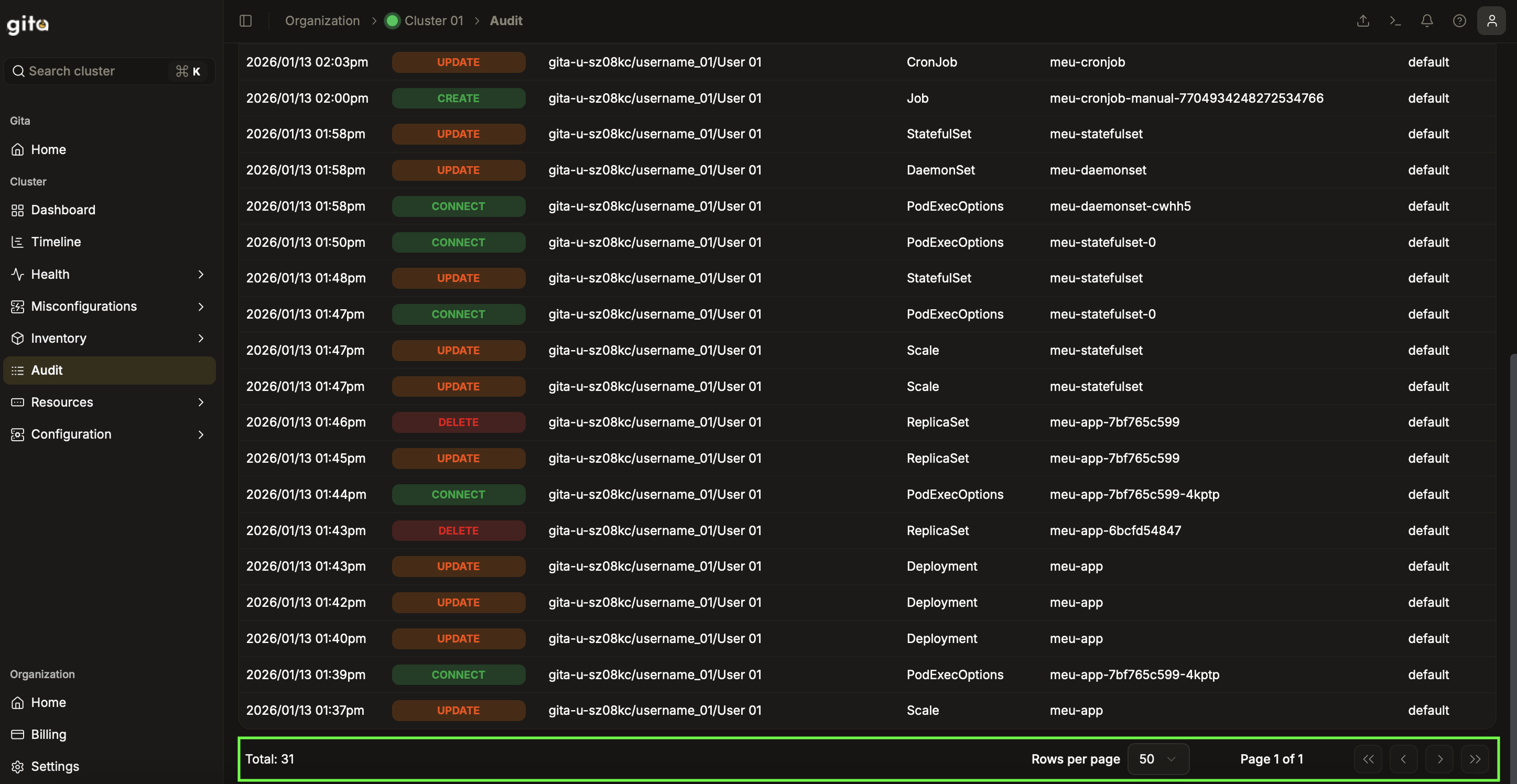
Image 06: Pagination controls